
A sims 4 furry mod can help you create an animal-inspired Sim with custom ears, tails, fur patterns, or a more complete anthropomorphic appearance. The easiest place to start is with a small set of Create a Sim custom content, or CC, rather than a large collection. Download pieces that work together, add them to your Mods folder, and check them on a new Sim before making them part of a favorite save.
There isn't one official furry mod that everyone needs. Different creators offer different art styles and combinations of parts, so the right choice depends on whether you want a subtle animal look or a character with a muzzle, fur, and a tail. On PC and Mac, both mods and CC can be added to the game; console versions of The Sims 4 don't support installing them this way.
Choose a look before you download
Start by deciding how much of your Sim you want to change. Ears and a tail can be a simple first project, especially if you want to keep ordinary hairstyles and clothing. A more detailed character may need a custom head or muzzle, skin details, body textures, and accessories designed to fit together.
Read the creator's description for every piece. Some items use an accessory slot, such as glasses or a ring, which can prevent another item in the same slot from being worn at the same time. Others appear under skin details, makeup, clothing, or another Create a Sim category. Knowing where to look saves a lot of quiet scrolling later.
Also check whether the download needs a separate mesh. A recolor changes an item's appearance but may depend on the original mesh, which provides its shape. If a required mesh is missing, the item may not appear or display correctly. Look for notes about age, body frame, outfit categories, and any required game packs, too.
If you own The Sims 4 Werewolves, its werewolf creation options are another route to an animal-like character. That's an official expansion rather than a free CC download, and its werewolf form is tied to the game's occult system. Custom content gives you a different range of visual choices, depending on what its creator has made.

How to install a sims 4 furry mod
Before adding anything, make a backup of your saves. On PC or Mac, find the game's user folder under Documents, then Electronic Arts, then The Sims 4. Copy the Saves folder somewhere outside the game folder. If you use a cloud-sync service for Documents, make sure you are opening the folder your game actually uses.
Next, download your chosen files from the creator's own page or a reputable mod-hosting platform. Read the instructions before clicking download links, and avoid sites that bundle unrelated installers or ask you to disable security software. Custom content commonly comes as a .package file; a scripted mod may also include a .ts4script file.
If the download is a .zip, .rar, or .7z archive, extract it first. Put the resulting files in Documents/Electronic Arts/The Sims 4/Mods, following any folder instructions from the creator. Package files can be organized into subfolders, but script files should be no more than one folder deep inside Mods. Leave a .ts4script file intact rather than extracting its contents.
Launch the game and open Game Options, then Other. Turn on Enable Custom Content and Mods. If your download includes a script mod, turn on Script Mods Allowed as well. Apply the changes and restart the game. You don't need to enable script mods for a collection that contains only ordinary cosmetic .package files.
Now open Create a Sim and look in the categories named by the creator. Try the pieces together on a new household first. This gives you room to experiment without changing a Sim you already love.
Make the pieces work together
A matching set from one creator is a comfortable starting point because its pieces are intended to share a visual style. That doesn't mean you can never mix creators. It just means you can establish a working base before adding another tail or a different set of ears.
Check your Sim from the front and side, then switch through a few outfits. Ears may disappear beneath a particular hairstyle, and a tail may clip through clothing or furniture. These are visual conflicts, not necessarily signs that your game is broken. Trying a different hairstyle, outfit, or accessory combination may solve the problem.
Textures deserve a look at normal playing distance as well as in close-up. A detailed muzzle can look lovely in Create a Sim but may not blend with every skin detail or facial preset. If a piece changes your Sim's face in an unexpected way, remove items one at a time until you can identify the conflict.
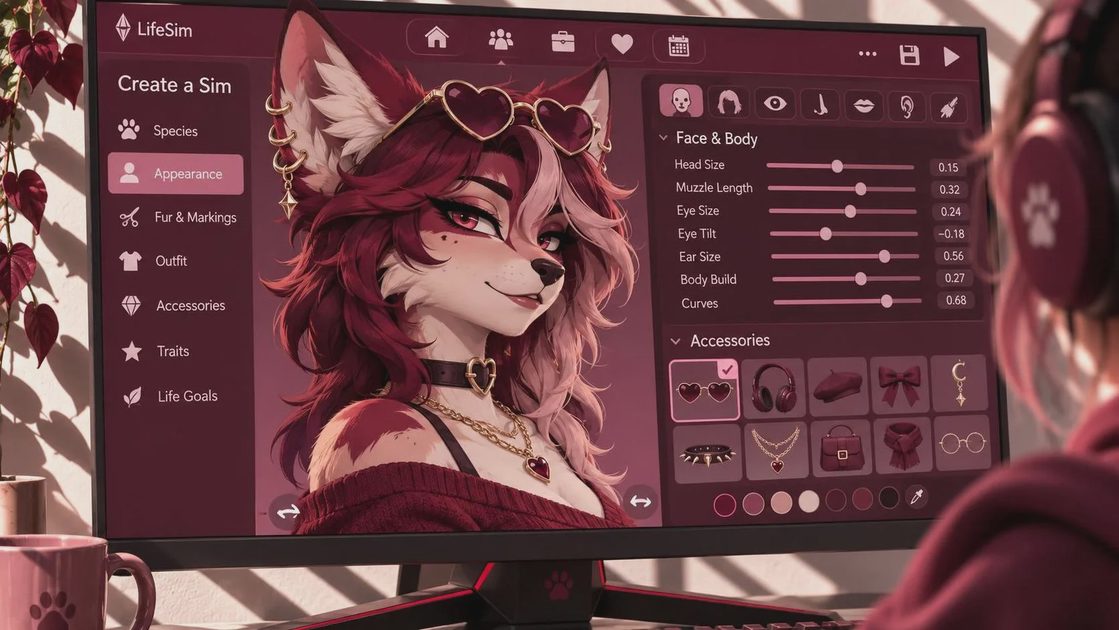
Once you have a combination you like, save the household to your library. Keep the original download pages bookmarked if you can; they're useful when you need to find requirements or updated files later.
Fix missing or broken custom content
If an item doesn't show up, first confirm that the archive was extracted and that the .package file is inside the correct Mods folder. Check that custom content is enabled, then restart the game. Game updates can turn the setting off, so it's worth checking even if the content worked before.
If the item appears but looks wrong, revisit its download page for a missing mesh, required pack, or compatibility note. Temporarily remove similar CC that changes the same feature, then test again. A small test folder makes this much easier than sorting through hundreds of downloads at once.
For a larger collection, use the 50/50 method: move about half your custom content out of the Mods folder to a temporary folder outside the game, then test. Repeat with the half that contains the problem until you narrow it down. Keep track of what you move, and avoid saving over an important household while its custom content is missing; Sims can lose equipped items when they load without them.
After a game patch, check creators' pages for updates before putting a large collection back. If you need to troubleshoot further, exit the game and delete the localthumbcache.package file from The Sims 4 user folder; the game will regenerate it. Then launch again and test your files in small groups.
You don't need the perfect start—just a smoother one. Pick a look, install a few compatible pieces, and make a test Sim. Once those basics work, you can build a whole cozy household around them at your own pace.


