
If you searched for resource.cfg sims 4 because your custom content isn't showing up, start with the Mods folder in your user files. Resource.cfg is a small configuration file that helps the game find package files there. If it's missing, The Sims 4 will normally create a fresh one when you launch the game with a properly generated Mods folder. You don't need to download a replacement from a random website.
Before changing anything, close the game. Your saves and downloaded content are usually recoverable, and a missing configuration file is a good place to start—not a reason to reinstall everything.
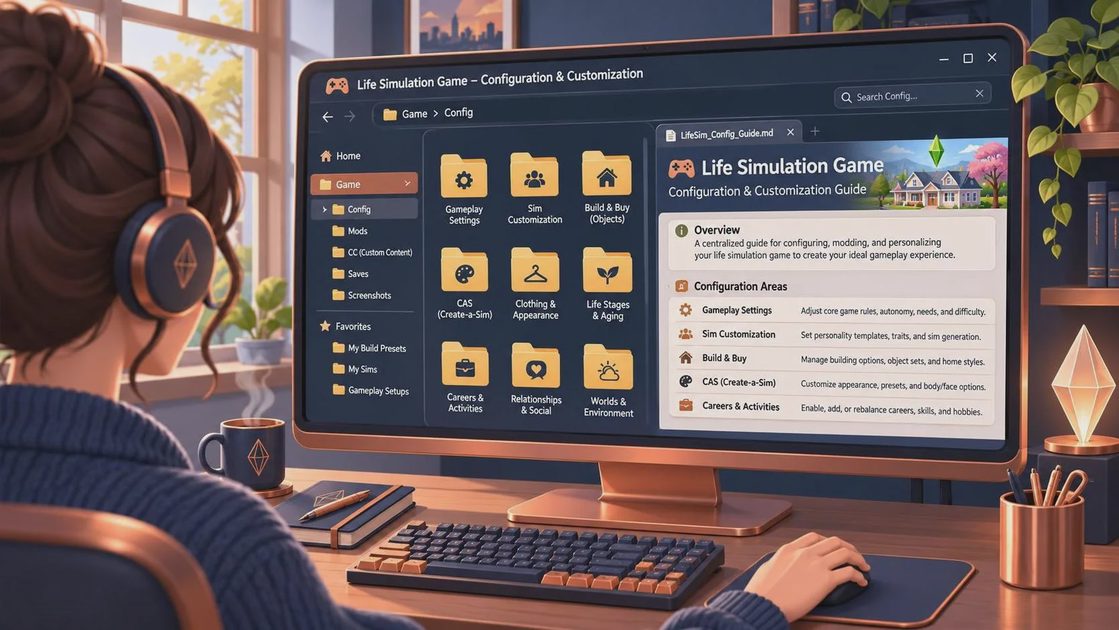
Where to find resource.cfg sims 4 files
On Windows, the usual location is Documents > Electronic Arts > The Sims 4 > Mods. On Mac, look in Documents > Electronic Arts > The Sims 4 > Mods. Open the Mods folder itself and look for a file named Resource.cfg alongside your installed mods or folders.
The important distinction is that this is the user-data folder, not the folder where the game application is installed. Other files with similar names can exist elsewhere; leave those alone. The file you're looking for belongs directly inside the user-data Mods folder, not inside a creator's download folder.
If you don't see The Sims 4 folder in Documents, launch the game once and reach the main menu, then exit and look again. The game creates its user files when it runs. If you have multiple copies of the folder, don't delete either one yet: cloud syncing or a moved Documents folder may explain why you see more than one.
On Windows, OneDrive can move or sync Documents. On Mac, iCloud Drive can sync Documents too. Check the Documents location your computer is actually using, and look for the folder whose files have changed after your most recent game launch.
How to restore a missing Resource.cfg
The safest resource.cfg sims 4 fix is to let the game generate its own file. First, make a backup copy of your entire The Sims 4 user folder somewhere easy to find, such as your desktop. This gives you a way back if you move the wrong folder or discover you were looking at an older copy.
Next, with the game closed, rename the existing Mods folder to something like Mods backup. Launch The Sims 4, let it reach the main menu, and exit. Return to the active The Sims 4 user folder and check whether a new Mods folder and Resource.cfg have appeared.
If they have, leave that new file in place. Copy your downloaded mods and custom content from Mods backup into the new Mods folder in small groups. Don't copy an old Resource.cfg over the freshly generated one. Starting with a few files makes it easier to spot a problem if something stops working.
If a new folder or file doesn't appear, double-check that you're viewing the active user folder and that your computer's Documents folder is writable. Cloud-sync conflicts, security settings, or an incorrect location can get in the way. You can also use your game platform's repair option, but back up your user folder first and check the folder location before taking that step.
Turn on mods and check your file types
A healthy resource.cfg sims 4 setup still needs the right game settings. From the main menu, open Game Options, choose Other, and enable custom content and mods. If you use script mods, enable Script Mods Allowed as well. Apply the changes and restart the game; these settings may be turned off after a game update.
Look at your downloads before putting them back. Custom content and many mods use the .package extension. Script mods commonly use .ts4script. A compressed download such as a .zip or .rar usually needs to be extracted first, so the game can see the files inside. Follow the creator's instructions, because some downloads include several required files.
Folder depth matters, especially for scripts. Place a .ts4script file directly in Mods or no more than one folder below it. For example, Mods > CreatorName > file.ts4script is a sensible arrangement. Don't extract the contents of a .ts4script file itself unless its creator specifically tells you to.
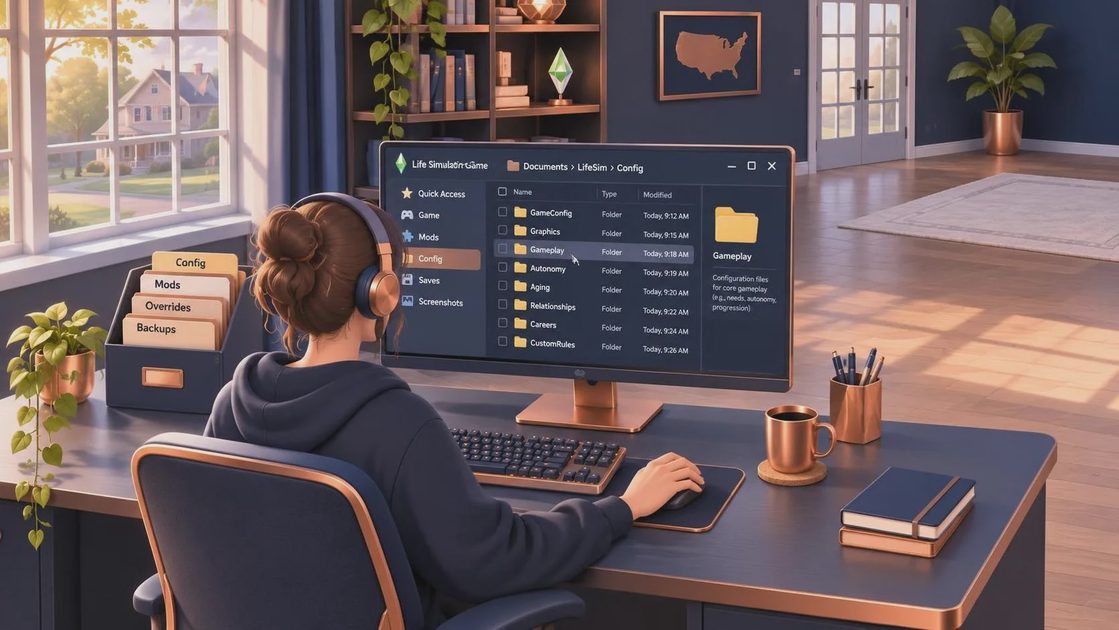
Package files can generally be organized in subfolders, but avoid nesting them unnecessarily deep. If a package isn't appearing, move a copy closer to the top of Mods while you troubleshoot. Keep the original download somewhere outside the game folder so you can restore it if needed.
When custom content still doesn't appear
If resource.cfg sims 4 is in the right place and your settings are on, test with one known-compatible item rather than your whole collection. Close the game, temporarily move the other downloads out of Mods, and leave one package file in the newly generated folder. Start the game and look for that item in its appropriate catalog or menu.
If it appears, add the remaining files back in small batches until the trouble returns. Then narrow down the last batch. An outdated mod, duplicate file, or missing dependency can cause problems that a configuration file can't fix. For script mods in particular, check the creator's update notes after a game patch.
If nothing appears, look again at the path. A common mix-up is putting downloads in Mods > Mods after copying a folder instead of its contents. Another is adding files to an inactive copy of The Sims 4 folder while the game reads a different one. Check the location before changing file contents or reinstalling downloads.
For testing, avoid saving over a household you care about while important custom content or mods are removed. Objects or other content may be missing when the save loads. Use a disposable test save, or exit without saving, then restore your normal setup once you've identified the issue.
Should you edit or download the file?
For most players, no. The standard file generated by the game is the best starting point, and editing it isn't necessary for an ordinary collection. A creator may provide specialized instructions for an unusual setup, but don't change configuration lines just because a general troubleshooting post suggests it.
Likewise, skip third-party replacement downloads. With resource.cfg sims 4 issues, the game's own generated file avoids the uncertainty of an unknown download. Once your test item works, bring your collection back gradually, keep your backup until you're satisfied, and settle back into your save. You don't need the perfect start—just a smoother one.


